Deleting an event: Learning about the Update and Delete columns
Understanding the Update flag
In addition to all of the columns corresponding to all of Outlook Calendar's event properties, Excelendar has two special columns, the Update column and the Delete column. When making changes to an event row, the add-in automatically sets the update flag to true for said event row. However, this functionality is only enabled when the add-in taskpane is opened, as Microsoft Excel does not allow for background event listeners.
This means that before you make any changes, you should open the Excelendar taskpane so that the update checkboxes can be automatically checked by the add-in.
The Delete flag
When you want to delete an event in Outlook Calendar via the add-in, simply tick the corresponding event row's delete checkbox and the export functionality will take care of the deletion.
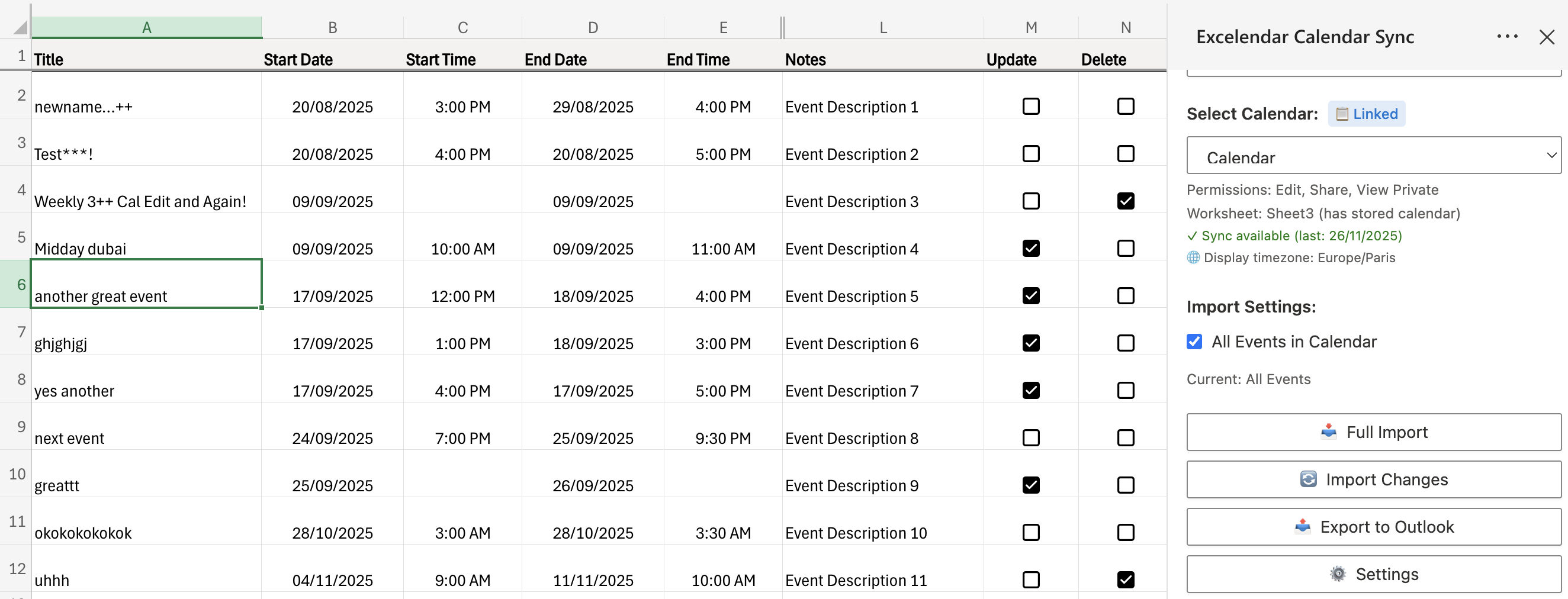
In the screenshot above, you can see several events with their Update checkboxes checked (indicating they've been modified), and one event with the Delete checkbox checked (indicating it will be deleted when you export).