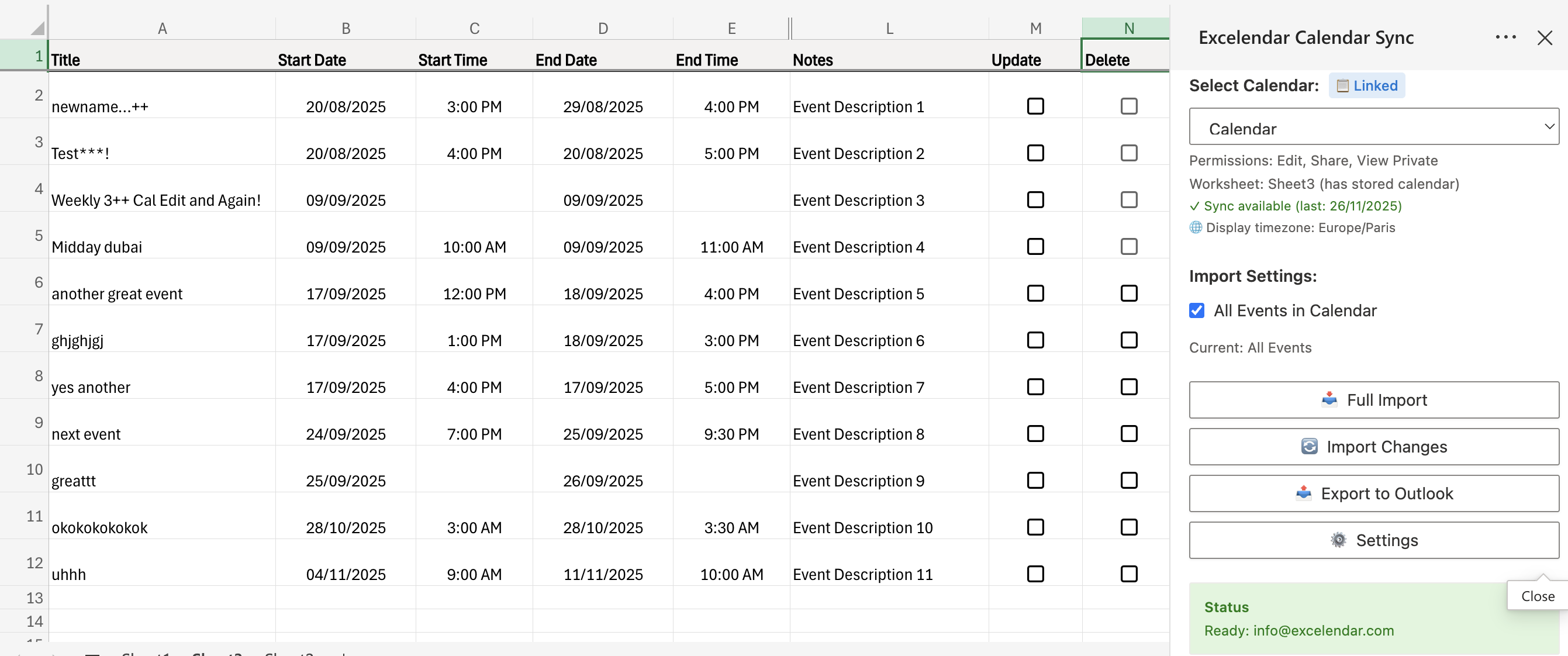
Importing your first Calendar into Excel
When working with Excelendar, it is important to know that the add-in operates by assigning Calendars in Outlook to Excel Worksheets 1:1. This means that you cannot have multiple calendars in the same sheet.
Thus, one worksheet corresponds to one calendar, one row corresponds to one event, and one column corresponds to one event property.
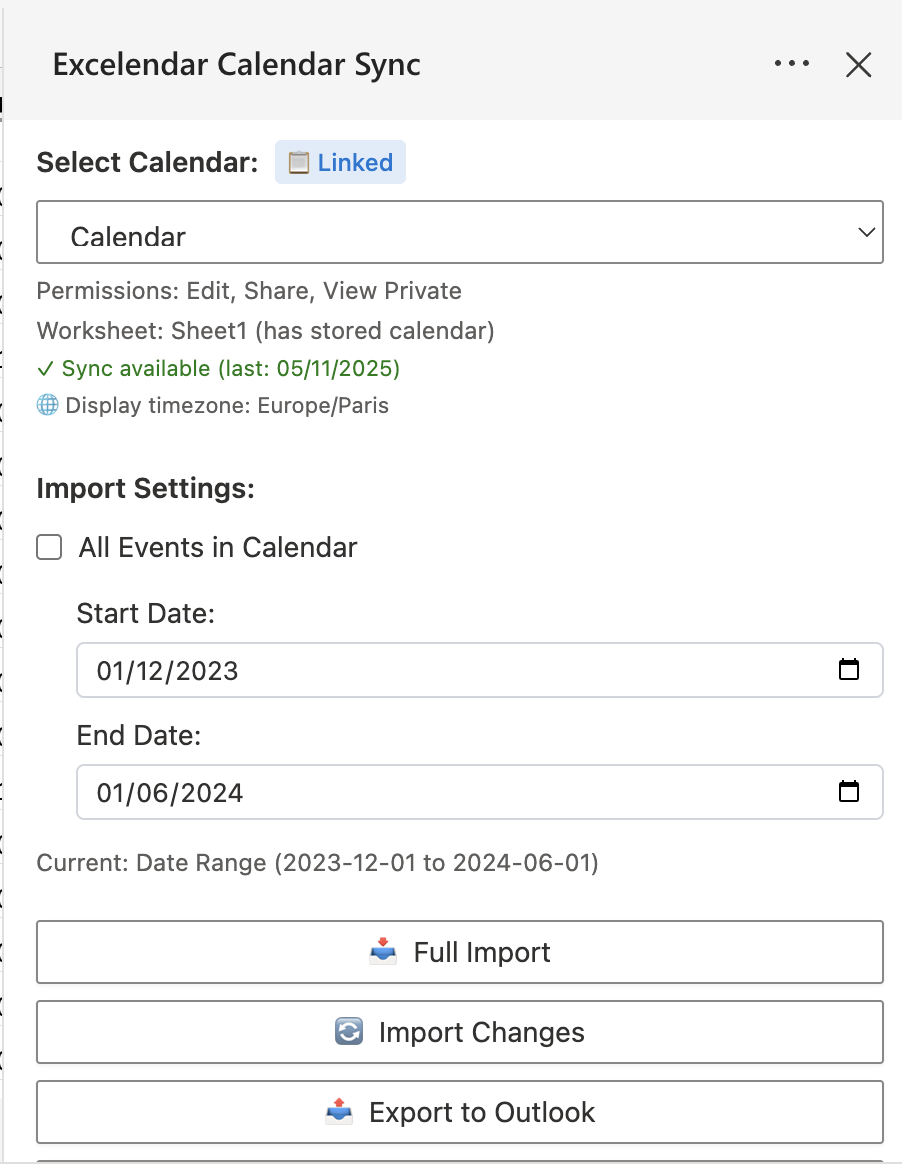
To import a calendar into an Excel sheet, open the taskpane via the "Open Taskpane" button in the ribbon bar. Once opened and authenticated, select a calendar from the dropdown and choose whether you want to import all events of a calendar or only a date range. You can then press on Import. Note that this will clear a certain range of the sheet depending on the number of columns it is importing.
After importing, you'll see your calendar events displayed in Excel with each row representing one event and columns showing event properties like Title, Start Date, Start Time, End Date, End Time, Notes, and the special Update and Delete columns.